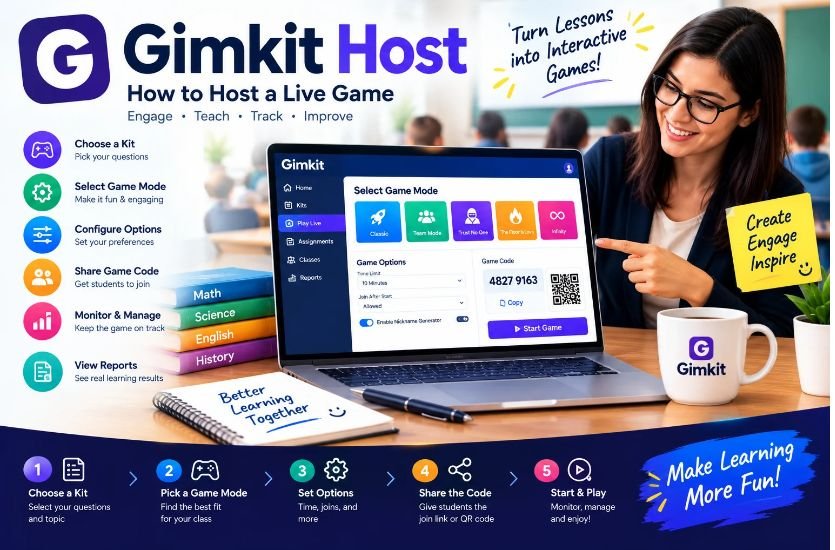
Gimkit Host refers to the hosting side of Gimkit, where a teacher or game organizer turns a Kit into a live interactive learning session. Instead of simply giving students a list of questions, the host can select a game mode, configure the session, share a game code or join link, monitor participants, and control the activity while it is running. Gimkit’s official Help Center describes the basic hosting process as selecting a Kit, choosing a game mode, setting game options, sharing the game code or join link, and starting the game.
For teachers who want a more engaging way to review lessons, Gimkit Host can combine quiz questions with competitive or game-based activities. The host remains responsible for preparing the session and deciding how students participate. Understanding how hosting works is therefore important before starting a classroom game, particularly when many students are expected to join at the same time.
What Is Gimkit Host?
Gimkit Host is not a separate quiz application that operates independently from Gimkit. The term generally describes the teacher or organizer experience used to launch and manage a live Gimkit game.
The host begins with a Kit, which contains the questions students will answer. From there, the host selects a suitable game mode and configures the available settings. After the lobby is created, Gimkit provides a game code and other joining options that can be shared with participants.
The host then waits for students to enter the lobby and starts the game when the group is ready. During gameplay, the host has access to controls that can vary according to the selected game mode.
How Does Gimkit Host Work?
The hosting process follows a relatively straightforward sequence. First, the host chooses an existing Kit from the Gimkit dashboard. A Kit can contain questions created for a particular lesson, topic, subject, or review activity.
After choosing the Kit, the host selects Play Live. Gimkit then opens its game-mode selection area, where the host can browse the available modes and choose the type of activity that fits the session.
Once the game mode has been selected, the host proceeds to the game options. Available options depend on the selected mode, so the settings displayed for one type of game may not be identical to those available in another.
After configuration is complete, the host enters the lobby. The lobby displays the information students need to join, including the game code. Gimkit also provides a QR-code option and a direct join link. When enough students have entered the lobby, the host can start the game.
What Is a Gimkit Host Game Code?
A Gimkit game code is the code students use to enter a live session created by the host. It connects the participant to the particular game lobby that has been created.
The host can display the code on a classroom projector, interactive board, shared screen, or another suitable display. In 2D game modes, Gimkit also keeps the game code available during the live session, making it easier for late participants to see it.
A game code should not be confused with a permanent account password. It is associated with the particular live game session and is primarily used to help participants enter that session.
How Students Join a Gimkit Host Game
Once the host creates the lobby, students need the information provided by the teacher. Gimkit’s official joining instructions tell participants to use the game code, QR code, or join link supplied by the host.
Students joining without Classes can go to Gimkit’s join page and enter the game code. They can then provide their name or accept a nickname generated by the teacher’s settings. If Classes are being used and the student is properly signed in, the joining process can be more streamlined.
This distinction between hosting and joining is important. A teacher normally creates and controls the live session, while students enter an already-created session. A student who only has a game code generally does not have the same controls as the host.
How to Host a Gimkit Game Step by Step
Choose a Kit
The first step is selecting the Kit that will be used for the activity. The Kit should contain questions appropriate for the lesson and the students taking part.
A teacher can use an existing Kit or prepare a Kit before beginning the live session. Choosing the questions in advance reduces delays once students are already waiting in the lobby.
Select a Game Mode
After choosing a Kit, select Play Live and browse the available game modes. Gimkit provides different modes designed for different styles of classroom interaction.
The appropriate mode depends on what the teacher wants students to accomplish. A fast competitive review may call for a different setup from a collaborative or more exploratory classroom activity.
Configure Game Options
The game-options screen allows the host to adjust settings available for the selected mode. Gimkit notes that options can include connecting Classes, using the Nickname Generator, setting game goals, and controlling whether students can join after the game has started.
These settings should be checked before launching the game because they can affect how students experience the activity.
Open the Lobby
After the settings are configured, the host proceeds to the lobby. This is where students gather before the game begins.
The host can monitor incoming participants and check names before starting. In situations where students are using inappropriate names, the lobby provides an opportunity to address the problem before gameplay begins.
Share the Game Code
The host can display the game code for students to enter. Gimkit also supports QR codes and direct join links, which can reduce the amount of typing required.
For QR-code joining, the host can hover over the game code to display the QR code. Students can then scan it with a compatible device.
Start the Game
When the class is ready, the host selects Start Game. Participants are then taken from the lobby into the live activity.
The exact appearance of the host’s screen depends on the selected game mode. In non-2D modes, the host can see a leaderboard-style screen, while 2D modes provide a game environment and additional hosting controls.
Gimkit Host Controls
Host controls allow the teacher to monitor and manage the live session. The available controls depend on the game mode.
For 2D games, Gimkit provides controls for viewing the game code, switching between players while spectating, adjusting sound, viewing the leaderboard, viewing players, and ending the game.
The player-management controls can also allow the host to select a participant to spectate or remove a participant, depending on the circumstances and game mode.
These controls are particularly useful when a teacher is managing a large classroom because the host does not have to rely entirely on students to manage the session themselves.
Can a Gimkit Host Join the Game as a Player?
For 2D game modes, Gimkit allows the host to choose whether to participate as a player or act as a spectator. This option is presented in the lobby before the game begins.
Joining as a player can make the activity more interactive for the teacher, while spectating can make it easier to observe what students are doing during gameplay.
The choice depends on the teaching situation and the selected game mode.
Can Students Join Late?
Gimkit provides a Join in Late setting for live games. The host can control whether students are permitted to join after the game has already started. According to Gimkit’s hosting documentation, live games default to allowing late joining, although the host can change the setting during setup.
This can be useful when students enter the classroom at different times or experience temporary technical problems. On the other hand, a teacher may prefer to close joining once the activity has started if maintaining a fixed group is important.
Gimkit Host and QR Codes
QR codes can make classroom joining easier because students do not have to manually type the game code.
During a live game, the host can hover over the game code to display the QR code. Students can scan it with a compatible device and proceed into the game. Gimkit also provides a direct join link that can be copied and shared.
For a classroom with many participants, displaying the QR code on a large screen can be a convenient alternative to asking every student to type the code.
What Happens When the Gimkit Game Starts?
Once the host selects Start Game, students move into the live activity and begin interacting with the Kit according to the rules of the selected game mode.
The host’s screen provides management tools while the game is running. Depending on the mode, the host may be able to monitor players, display the leaderboard, adjust audio, observe participants, and end the game.
In 2D games, the host also has access to a game timer. Gimkit allows additional time to be added during live 2D games, subject to the platform’s maximum time limit.
How to End a Gimkit Host Game
A host does not necessarily have to wait for the normal game goal to be reached. Gimkit provides an option to end a live game early in supported game modes.
For 2D games, the End Game control is available in the host interface and includes a confirmation step to reduce accidental termination.
Ending a game can be useful when classroom time has run out, when the teacher has achieved the intended learning objective, or when a technical or classroom issue requires the activity to stop.
Gimkit Host Game Reports
One of the most useful features after hosting is the game report. Gimkit states that after a host plays a Kit they own, a report containing class and individual data is provided.
Reports can be accessed immediately after a game or later through the Reports section. Gimkit identifies three report views: Student Overview, General Overview, and Question Breakdown.
The Student Overview can help a teacher examine individual performance. The General Overview provides broader information about the session, while Question Breakdown can help identify questions that caused difficulty.
This means Gimkit Host is not only about running a game. The results can also help teachers identify areas that may require additional explanation or review.
Why Gimkit Host Can Be Useful for Classroom Review
Traditional quizzes can sometimes make classroom review feel repetitive. A live game can introduce an interactive element while students are answering questions.
The host controls the structure of the activity, while the Kit supplies the academic content. This separation allows the teacher to focus on lesson objectives rather than manually organizing every question during the session.
The reporting system also gives the host an opportunity to examine student performance after the activity rather than relying solely on the final leaderboard.
Common Gimkit Host Problems
One of the most common problems is that students cannot enter the game. The first things to check are the game code, the student’s internet connection, and whether the student is using the correct joining process.
Another common issue occurs when students enter the wrong name or an inappropriate nickname. Checking the lobby before starting the game can help the host identify such problems early.
A different issue can occur when the host selects a game mode or setting that does not match the intended classroom activity. Reviewing the mode and game options before opening the lobby can reduce this risk.
Technical problems can also occur if too many devices are trying to connect through an unreliable network. In such circumstances, the host may need to check the local network connection and reduce other unnecessary network activity.
Quick Answer: Gimkit Host Game Code Not Working
If a student says the Gimkit Host game code is not working, first confirm that the student is entering the current code from the host’s active lobby. Then make sure the student is using Gimkit’s official joining process and has a stable internet connection.
If the code is correct but the student still cannot enter, refresh the browser and try again. The host should also verify that the game is still active and that the relevant joining settings allow the student to enter. If several students are having the same problem simultaneously, checking the classroom network connection is an important next step.
How to Make a Gimkit Host Session Run Smoothly
Preparation is one of the easiest ways to prevent problems. The host should select the Kit and game mode before students are waiting, review the available game options, and decide whether late joining should be permitted.
It is also useful to display the game code clearly and have the QR-code option available. Students who cannot enter manually may find scanning easier.
Before starting, the host should check the lobby for unexpected participants and verify that students are ready. Once the game begins, the host can use the available controls to monitor the activity and respond to problems.
After the session, reviewing the report can help turn the game into a more useful learning assessment. Questions that many students answered incorrectly may indicate concepts that need further explanation or another review activity.
Gimkit Host vs. Gimkit Join
The terms Gimkit Host and Gimkit Join describe two different sides of the same live-game process.
Gimkit Host refers to the teacher or organizer who selects the Kit, chooses the game mode, configures the session, creates the lobby, and starts the activity.
Gimkit Join refers to the participant process. Students receive the game code, QR code, or join link from the host and use it to enter the live session.
Understanding this difference can eliminate confusion when students search for a way to enter a game but are actually looking at information intended for hosts.
Is Gimkit Host Free?
Whether a particular Gimkit feature is available can depend on the account and current Gimkit plan. The hosting process itself is part of Gimkit’s platform, but teachers should check the current account and plan information for the features available to them.
Because Gimkit can update its game modes, account features, and hosting options, users should rely on the platform’s current documentation when a specific feature or limitation is important.
Final Thoughts on Gimkit Host
Gimkit Host is essentially the control side of a live Gimkit learning activity. The host selects a Kit, chooses a game mode, configures the available settings, opens the lobby, shares the game code or joining options, and starts the activity.
During gameplay, host controls provide ways to monitor and manage the session, while post-game reports can provide useful information about individual and question-level performance.
For anyone searching for Gimkit Host, the most important point is that hosting is not simply about generating a game code. It involves preparing the questions, selecting an appropriate mode, managing participation, resolving joining problems, controlling the live session, and using the results afterward to support learning.
Visit: Editorial Magazine for more full of informational and educational blogs.